Do you have a second Eco 100 router and would you like to expand your WiFi network? Would you like to create one single WiFi network in your home, consisting of a main Eco 100 router and a secondary Eco 100, with seamless switching when moving with your phone or laptop from one router to the other? Then you can choose to set the second Eco 100 router either to Access Point mode or to Wireless Eco 100 Extender/Repeater mode.
- For Access Point mode, which is the lowest EMF option, you need to hardwire the second Eco 100 router by connecting it to a LAN port on the main Eco 100 router via an Ethernet cable.
- For Wireless Eco 100 Repeater mode, you don’t need to run a cable to the secondary unit.
In Access Point and Repeater modes, the secondary unit acts as a simple network switch. This gives you access to network drives or printers connected to your main router. This is because, unlike in Router mode, all devices connected to the secondary unit (via the WAN and LAN ports or WiFi) are on the same local area network (LAN), creating a single network. The main router will assign IP addresses to the devices connected through the secondary unit.
You cannot use Access Point or Wireless Repeater mode for the first Eco router if your Internet modem is in ‘bridge mode’ or lacks routing functionality. (This is always the case if your modem only has one LAN port.) For the second Eco router, you can always use Access Point mode or Wireless Repeater mode.
To set the Eco router to Access Point mode
- Log in to the router settings menu
- Go to the Eco 100 Wifi -> Operation Mode page
- In the ‘Wifi password’ field under ‘Switch to Access Point mode (wired WAN),’ enter the WiFi password for the main router, if you want the access point’s WiFi password to be set the same. If you prefer, you can also choose a different password, or enter ‘keep’ to leave the access point’s WiFi password as it is.
- Click the ‘Go’ button under ‘Switch to Access Point mode (wired WAN)’
- The router will restart.
Please note that the router’s settings menu will no longer be accessible via the old address, http://192.168.4.1, and will be assigned a new IP address. To find this, log in to the main router and check the list of DHCP leases. You can also use a network scanning app, such as Fing.
To set the Eco router to Wireless Repeater mode
The Eco 100 Wireless Repeater mode gives you the first WiFi repeater that emits radically less radiation—a measurable 87% fewer beacon pulses during use, and is completely radiation-free when no devices are requesting WiFi. It’s fully compatible with Full Eco standby mode: If you pair it with a JRS Eco 100 router as your main router, the main Eco 100 router also turns off its WiFi after the repeater has shut down its WiFi. For more details, see The Low Radiation JRS Eco 100 WiFi Extender / Repeater
To set the operation mode of the router to Wireless Repeater mode:
- Log in to the router settings menu of the unit that you want to make into a repeater.
- Go to the Eco 100 Wifi -> Operation Mode page
- If you want to connect the repeater to a main router that is not an Era or Eos model, first create a WiFi network on the main router of the type ‘WDS Access Point’ with the name ‘JRS-Eco-100-WDS’. (If you are using an Era/Eos main router, this will be done automatically.)
- In the ‘Wifi password’ field under ‘Switch to Repeater mode (wireless WAN),’ enter the WiFi password for the main router with which you want to set up the wireless connection. The repeater’s password will be set to the same value.
- Click the ‘Go’ button under ‘Switch to Repeater mode (wireless WAN)’
- The router will restart.
Please note that the router’s settings menu will no longer be accessible via the old address, http://192.168.4.1, and will be assigned a new IP address. To find this, log in to the main router and check the list of DHCP leases. You can also use a network scanning app, such as Fing.
If the router reboots without switching to Wireless Repeater mode, it was unable to configure the main router or connect to it. Please make sure the main router is within range and check its WiFi password. In case of a main router that is not an Era or Eos model, make sure that a WiFi network of the type “WDS Access Point” with the name “JRS-Eco-100-WDS” exists on the main router.
EMFs in Wireless Repeater Mode, and wired connections
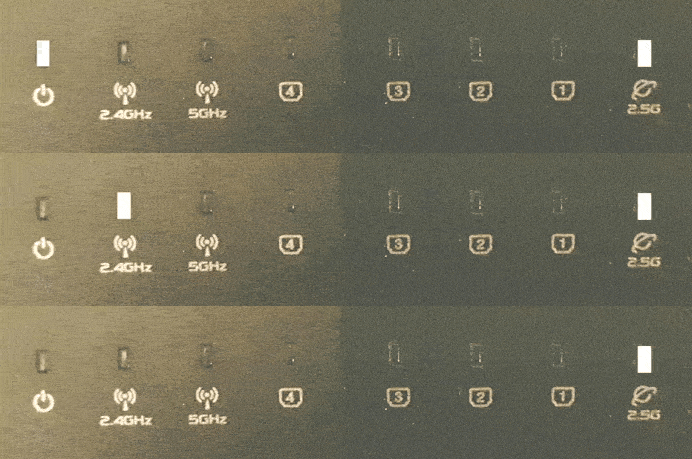
If no WiFi devices or wired devices are connected to the repeater, it will automatically switch to radiation-free sleep mode, completely disabling both the WiFi beacons and the WDS connection to the main router. The repeater is then completely radiation-free. If a computer or other device is connected to one of the repeater’s 4 wired LAN ports, but no WiFi devices are connected to the repeater, it will enable the wireless WDS connection to the main router but will not activate the WiFi beacons. As soon as you then, for example, turn off the PC—which disconnects the wired LAN connection—the repeater will disable the wireless WDS connection to the main router, making the repeater completely radiation-free again. Thanks to this system, the repeater always emits as little radiation as possible. If you turn the PC back on, the repeater will re-enable its WDS connection.
To revert to the default setting (Router mode)
The menu also offers the option to revert to Router mode, which is the default operating mode.
The router’s WiFi password will be reset. See the label on the bottom of the device for the WiFi password.
In this mode, the WAN and LAN sides of the router are in different subnetworks. Routing between the WAN and LAN takes place and via the secondary router it is not possible to access a network drive or printer connected to the main router.
- Log in to the router settings menu
- Go to the Eco 100 Wifi -> Operation Mode page
- Click the ‘Go’ button under ‘Revert to Router Mode’
- The router will restart.