



Is the wifi connection interfering, are devices unable to find the wifi network of the JRS Eco 100 Era router, is the connection faltering or is it very slow? This may be due to interference from other wifi networks. These could be your neighbors’ wifi routers, a printer broadcasting a Wifi-Direct network, or even other wireless systems that share the 2.4 GHz wifi frequency (including Bluetooth).
Also, if the built-in wifi of your internet modem (e.g., Comcast, Verizon, etc.) is not turned off, this can severely disrupt the signal of the Eco router. After all, in most cases, the Eco router is located right next to the internet modem. If this is the case, see: How do I turn off the wifi on my provider’s internet router/modem?
The best solution to these problems is to switch off the sources of interference. If that doesn’t work, you can set the Eco router to a different channel. The procedure below will help you identify the sources of wifi interference and set the router to a free channel.
- Go to the settings menu of the JRS Eco 100 Era router.
- Go to the Status -> Channel Analysis page. Once the scan is complete, all occupied wifi channels will be displayed. (You can check the wifi names to see whether the wifi of your internet modem is turned off.) Note that the entry ‘Local Interface’ refers to the Eco router itself. Look for a free channel with the least interference. In step 5, you can set the Eco 100 router to this channel. Please note: wifi channels partially overlap each other, and only channel sets with a minimum distance of 5 (e.g. 1, 6, and 11) do not overlap at all. See the image below.
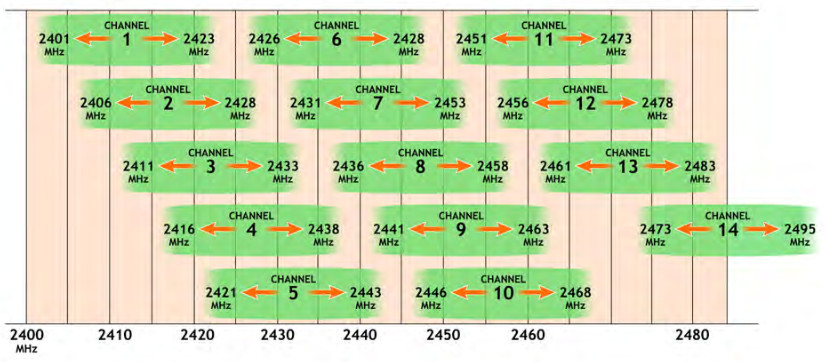
- If there are no channels available that are completely free, check the signal strengths of neighboring wifi networks and choose a channel on which only a weak network is present. Because the wifi channels overlap to some extent, it is best to choose a channel that does not have any very strong interferers right next to it.
- In addition to scanning the 2.4 GHz band, it is also possible to perform a scan for the 5 GHz band by clicking on the ‘radio1 (5GHz)’ tab. However, there is usually little to be found there because the 5 GHz frequency is more strongly attenuated by walls.
- Now we will set up the selected free channel. Go to the Eco 100 Wifi -> Wifi Networks page and press the Edit button next to ‘2.4GHz Radio (longest range)’. Under ‘Channel’ next to ‘Operating Frequency’, you can set the selected channel. When you are done, click the ‘Save & Apply’ button at the bottom of the page.
- It is recommended to keep ‘Width’ (the channel bandwidth) at 20 MHz for 2.4GHz, otherwise there is a high chance of overlap with neighboring wifi networks, if there are.
- To increase the range of the Eco 100 router, you can also increase the transmission power.
Optional: if some of your devices still have a poor connection, you may need to reduce the beacon interval to 500 or lower. You can do this on the Eco 100 Wifi -> Pro Settings page. This has to do with the devices themselves and only occurs in exceptional cases.