Frequently asked questions about JRS Eco 100 routers
Is the JRS Eco router compatible with my Internet provider / Internet gateway box?
Our JRS Eco 100 routers are compatible with every Internet provider, including Xfinity, Verizon, AT&T, and Spectrum. Using the included LAN cable, connect the router to your existing Internet router/modem. You need an Internet router/modem from your provider. This is because our Eco routers are separate wifi routers, not modems, so a modem is required for the connection to your provider. See also the explainer video below.
Explainer video
Turning off the Wi-Fi of the internet modem
If your Internet gateway box has built-in wifi, this needs to turned off in order to minimize wifi radiation and interference. See 'How do I turn off the Wi-Fi of my provider's Internet gateway box?' The provider should always allow you to disable the wifi. (For example, some people have a gaming router, which they want to let take over the wifi.) Usually you can easily find with google how to do it. We can help you disable the wifi if you let us know the make and model of your internet modem.How do I turn off the WiFi of my provider’s Internet gateway box/router?
If you want to reduce wifi radiation in your home, you should know that most of it comes from your internet router/modem, the box you get from your provider. In most cases, you cannot simply replace it with an Eco-router. What you can do is connect the Eco-router to the internet modem. The internet modem converts the internet signal that enters your home to an Ethernet connection, to which you can connect the Eco-router. How can you turn off the wifi on your internet modem and connect your own low-radiation JRS Eco-router? The wifi signal from the internet modem must then be turned off to prevent unnecessary EMFs and interference: after all, the Eco-router takes over the wifi function. Your provider should always offer you the option to turn off the wifi. (Some people have a gaming router, for example, which they want to use to take over the wifi.) On some internet modems, you can simply turn off the wifi with a switch on the device. Otherwise, it is done by logging into a settings menu that can be accessed through a browser by entering the correct address (the IP number), which is often listed on the bottom of the modem/router. In most cases, you can find a do-it-yourself guide on the Internet by googling the name of your ISP and the make and model of your Internet modem, e.g. "Disable wifi AT&T BGW320". Or you can contact your provider's customer service for assistance. If your internet provider transmits a public wifi network via its modems, make sure you disable this as well. In some cases, you will need to do this via a separate web page provided by your internet provider, for which you will need a personal login. To check whether your modem is no longer broadcasting wifi, hold your phone next to it and scan for wifi networks. Make sure there is no strong wifi network at the top of the list with the name of the provider. The phone and TV will continue to work as usual when connected to the internet modem. Below are instructions for disabling wifi for the most common providers:Which JRS Eco router model should I choose?
| JRS Eco 100 Era - Low EMF WiFi Router on Asus | |
| Full Eco Zero Emission stand-by mode | |
| 87% reduced beacon pulse frequency | |
| Fine adjustment of range with 1 milliwatt step size | |
| WiFi time scheduler - Set times when WiFi automatically switches off 100%, e.g. at night | |
| On/off button for WiFi transmitter - cabled LAN ports keep functioning | |
| Firewall and WPA2/WPA3-security | (WPA3) |
| Receives automatic security updates | |
| Supports creation of guest WiFi networks | |
| MiniDLNA media server | |
| WiFi speed on 2.4 GHz | 600 Mbps (802.11ax) |
| WiFi speed on 5 GHz | 3600 Mbps (802.11ax) |
| Internet / WAN port | 2500 Mbps |
| Ethernet LAN ports | 4x 1000 Mbps |
| USB ports for network drive or USB printer | 1x USB 3 |
| Grounded power supply adapter | |
| VPN client support | WireGuard OpenVPN |
| Supports 4G/5G mobile broadband USB dongles/sticks | |
| Supports installation of custom apps/packages | |
| Based on | Asus TUF-AX4200 |
| Suitable for wall mounting | |
| Dimensions (in) | 10.4 x 7.0 x 7.3 |
How to install your Eco router – video manual

How to install your Eco router – video manual
Easy installation. The Eco-WiFi router is connected to your internet modem using a standard network cable (included). If your internet modem has built-in Wifi, switch off its Wifi function. You may ask your internet provider’s customer service how. All functions of your existing internet modem, like for example internet telephony, can still be used.
The exposure to EM radiation from the laptop or other wirelessly connected equipment remains unchanged. Set your smartphone to switch its wifi off in stand-by mode. In some cases you can reduce the transmit power of your computer’s WiFi adapter using the Device Manager in Windows. A wired internet connection is radiation-free and minimizes health risk.
Is the Eco router as fast as a regular wifi router?
The download speed, connection quality, and range of the Eco router are the same as those of regular wifi routers! The measured actual wifi speed for the JRS Eco 100 Era is 1000 Mb/s and for the JRS Eco 100 D1 and D2 models 400 Mb/s. These are actual measured throughput speeds, not theoretical values such as ‘AC1900’.The JRS Eco 100 wireless router: 100% radiation-free in stand-by
 An ordinary wifi router broadcasts beacon signals 24 hours a day, 10 times a second. This generates a considerable amount of radiation in the home, clearly measurable. The unique JRS® Eco 100 wireless router automatically switches to Full Eco stand-by mode, reducing radiation to zero, when you turn off wifi on your computer and phone. When you reconnect to the wifi, the JRS Eco 100 router automatically switches the signal on again.
What makes these Asus® routers special is the JRS Eco firmware that runs on them. The first generation of JRS Eco wireless routers already significantly reduced the amount of electrosmog by reducing the pulse frequency of the beacon signals by a factor of 10. See Eco router: 90% reduced pulse frequency. The JRS Eco 100 technology takes it one step further.
An ordinary wifi router broadcasts beacon signals 24 hours a day, 10 times a second. This generates a considerable amount of radiation in the home, clearly measurable. The unique JRS® Eco 100 wireless router automatically switches to Full Eco stand-by mode, reducing radiation to zero, when you turn off wifi on your computer and phone. When you reconnect to the wifi, the JRS Eco 100 router automatically switches the signal on again.
What makes these Asus® routers special is the JRS Eco firmware that runs on them. The first generation of JRS Eco wireless routers already significantly reduced the amount of electrosmog by reducing the pulse frequency of the beacon signals by a factor of 10. See Eco router: 90% reduced pulse frequency. The JRS Eco 100 technology takes it one step further.
How does the Eco 100 router work?
Only when one of your wifi devices sends a wifi connection request does the JRS Eco 100 router immediately turn on the wifi signal. This means it only switches on for devices that belong to you. Your wireless device sends such a connection request when you switch on the wifi slider or open the list of available wifi networks. This is automatic and you won't notice any difference with a regular wifi router. When you install the JRS Eco 100 router, it first goes into learning mode so you can easily connect all your devices. The router automatically keeps a list of your devices that have been connected to it. Once all your devices are listed, the router automatically switches to Full Eco mode, in which it is completely radiation-free when no wifi devices are connected to it.
 |
 |
Measurements
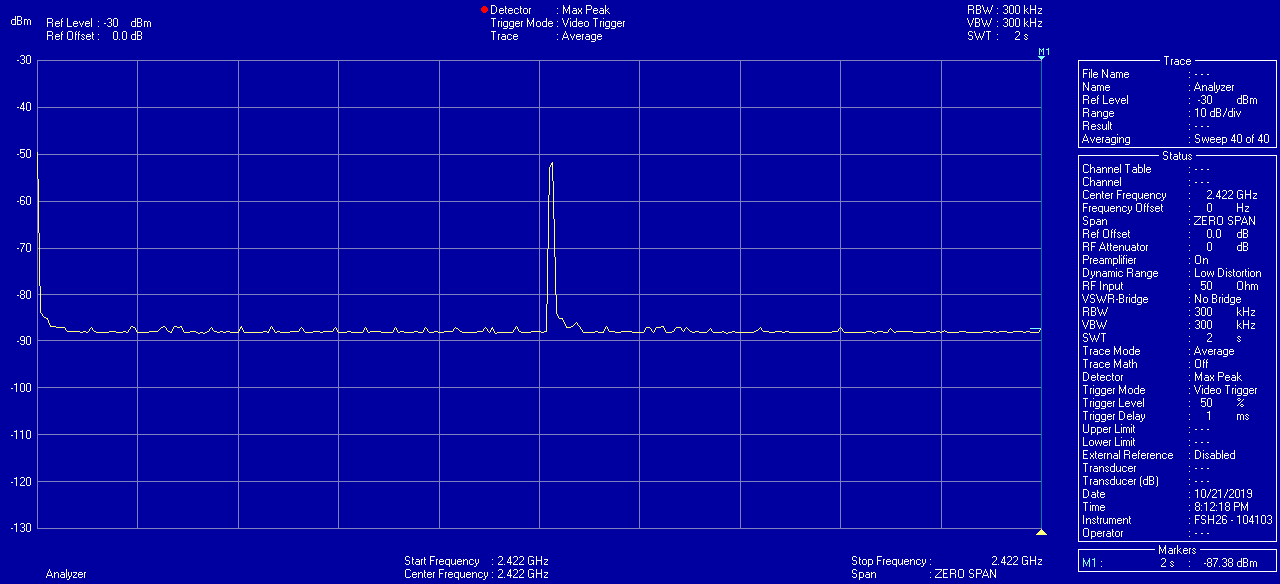
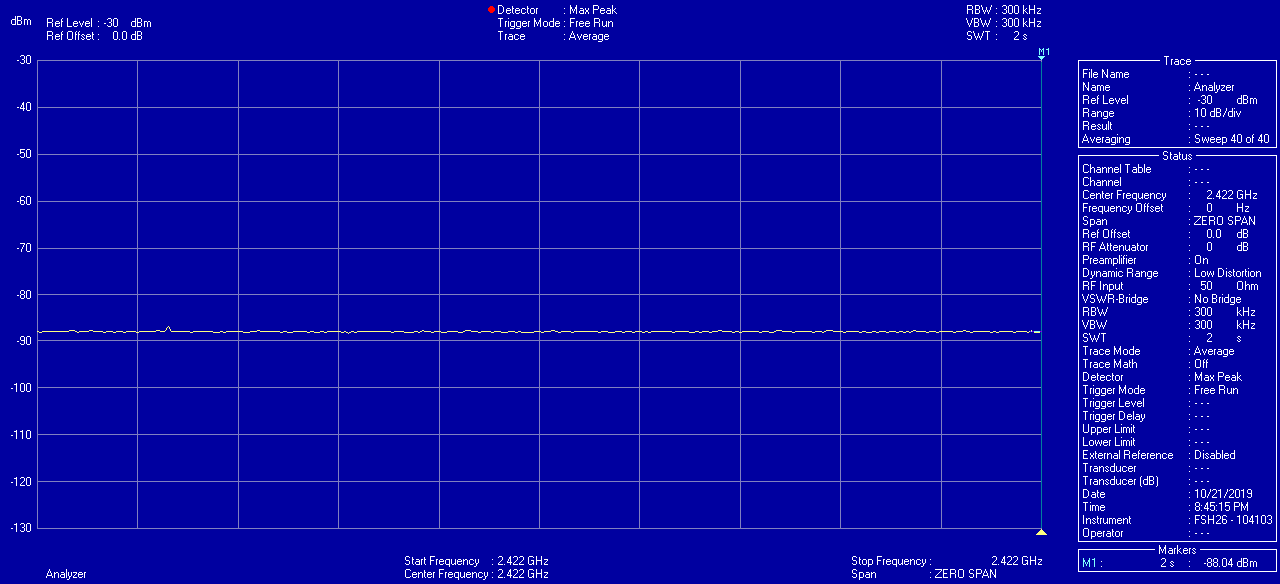
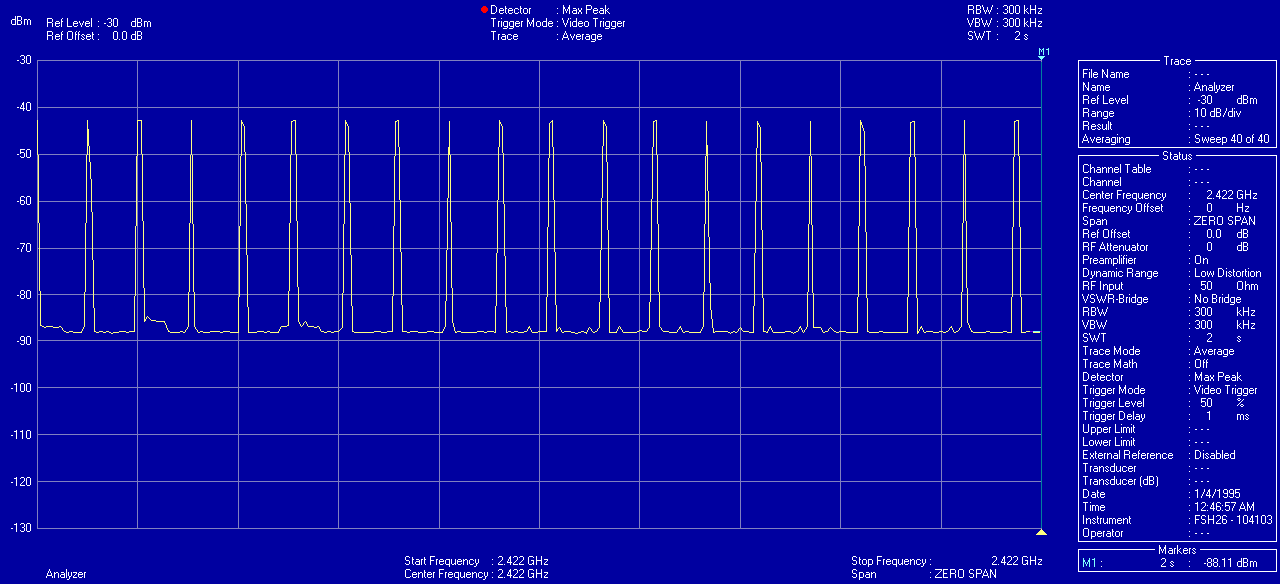
The JRS Eco 100 wireless router: 100% radiation-free in stand-by
Can I accomplish the same by adjusting the settings in an ordinary router?
The JRS Eco 100 functionality, which automatically turns off the wifi signal completely in stand-by, is unique to the JRS Eco 100 operating system and is not available on ordinary routers. People sometimes think that by setting a "Hidden SSID" on a regular wifi router, they reduce radiation. This is a misconception. With a 'packet sniffer' program like Wireshark you can determine that the router is still transmitting beacon packets, only the so-called 'SSID' field in these packets is set to zero. It doesn't reduce radiation from the router in any way. What about other settings? Often you can't adjust the transmitting power in ordinary routers or only in rough steps. The JRS Eco 100 firmware offers fine tuning of the transmission power with 10 steps, which is not available in the regular Asus® firmware.To what extent does an Eco router reduce my exposure to wifi radiation?
Wifi is two-way traffic. Although the Eco router greatly reduces the radiation of your router during stand-by and partly during operation, it does not reduce the radiation of your wireless devices. For each piece of data sent from the wifi router, a confirmation is sent back by your device. Wifi radiation from the devices is very strong and you keep the device very close to your body. Especially in data-intensive applications such as video, a lot of wifi radiation is emitted. By working with a wired Internet connection, you can minimize your exposure to electromagnetic radiation. See also the iPad® / iPhone® hardwired adapter.Eco router: 87% reduced pulse frequency
Even when the Eco router is in use, with devices connected, it emits less radiation than an ordinary wifi router. The Eco router has a 10x reduced beacon pulse frequency. This is explained below. Any wifi router transmits two main types of packets:- Beacon packets containing the name of the wifi network. The largest problem is, that in ordinary wifi routers, these are transmitted 10 times per second 24/7, both in standby and during usage. The Eco router reduces the pulsation frequency of this beacon signal to once per second.
- Data packets. Data packets are only transmitted during usage, for example when loading a web page, when an app is requesting information from the internet, or your device is downloading updates etc.
Measurements
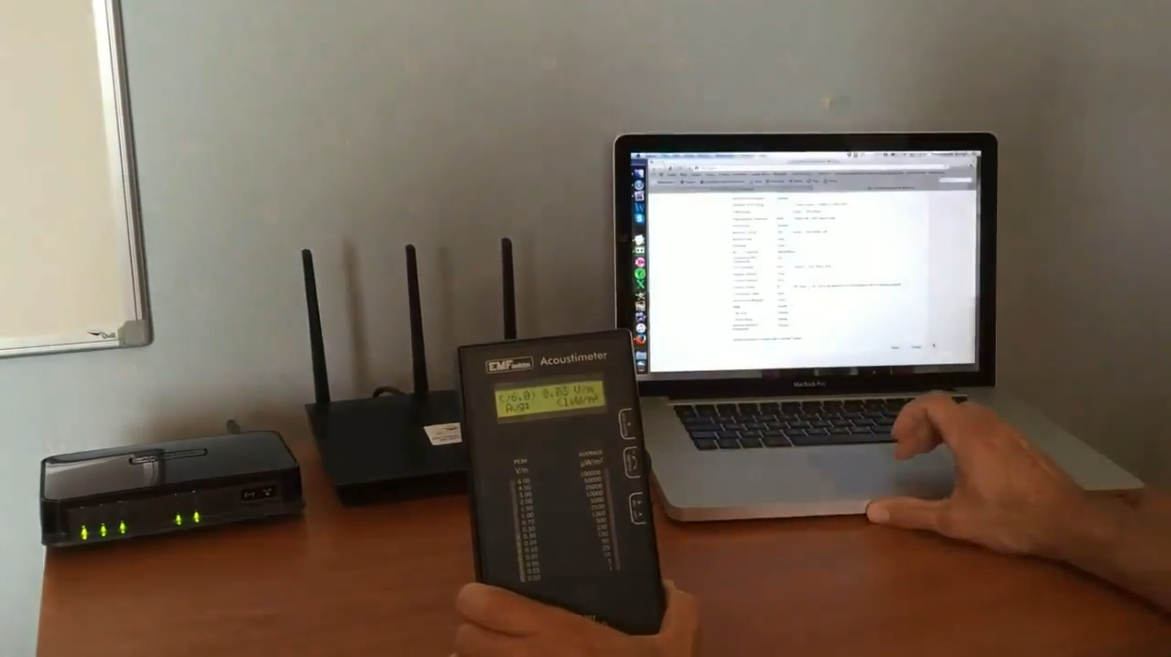
This is measurable using an electrosmog meter. The reduced pulse frequency of the beacon signal in the Eco routers has been measured by EMF Consult Norway. The oscilloscope images below show the measured electromagnetic emission versus time, on a 200 milliseconds x-axis scale. The left image shows an ordinary wifi router, and the right image shows the Eco router: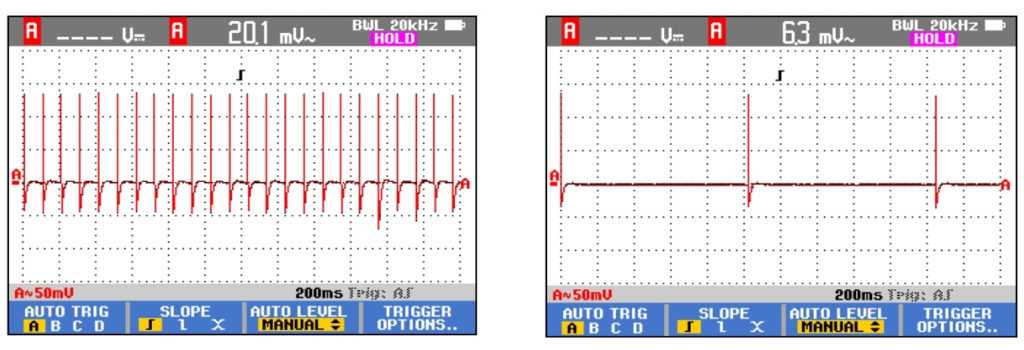 A demonstration is given in the below video from ElectricSense.com, measured with an Acoustimeter. Turn on sound to hear the difference:
Eco router: 87% reduced pulse frequency
Reducing the strength of the pulses
See Does the Eco router reduce the peak value of the pulses?To what extent does an Eco router reduce my exposure to wifi radiation?
Wifi is two-way traffic. Although the Eco router greatly reduces the radiation of your router during stand-by and partly during operation, it does not reduce the radiation of your wireless devices. For each piece of data sent from the wifi router, a confirmation is sent back by your device. Wifi radiation from the devices is very strong and you keep the device very close to your body. Especially in data-intensive applications such as video, the wifi radiation is very high. By working with a wired Internet connection, you can minimize your exposure to electromagnetic radiation. See also our iPad® / iPhone® hardwired adapter.Does the U.S. import ban on routers not manufactured in the U.S. affect the availability of JRS Eco routers for U.S. customers?
No, this regulation only prohibits the import into the U.S. of new models not manufactured in the U.S., not of existing models that already have FCC type approval. Therefore, this regulation currently has no impact on JRS, as our current Eco 100 routers are based on existing Asus models. Asus is a multinational computer and electronics manufacturer with a turnover of $24 billion, headquartered in Taiwan. Incidentally, almost all American router brands are manufactured outside the U.S. as well, so it remains to be seen how these regulations will play out in practice. Our JRS firmware is based on open-source firmware and receives regular security updates.Can I use the Eco router together with my Wi-Fi booster? How many routers/extenders do I need?
Do you currently have a system with wireless extenders/repeaters or a mesh? A mesh is a mess from an EMF point of view. All wireless signals are transmitted twice or more from one mesh node to another. Wi-Fi repeaters have a similar problem. It’s like a Wi-Fi receiver and access point in one box. Each Wi-Fi repeater will transmit 10 pulses per second, 24 hours per day. Furthermore, we cannot guarantee seamless interoperability of our Eco routers with a repeater. We recommend that you run a LAN cable to the 2nd, 3rd point and so on where you need Wi-Fi and put another Eco router there. For more information, see Is a wifi booster/repeater/extender a good idea in terms of radiation? The range you get from an Eco router is the same as you would get from an ordinary router. It's hard to say how many you'll need without knowing the exact situation, but a safe bet would be to assume that you need as many Eco routers as you currently have Wi-Fi routers and repeaters combined. So, would it be it an option for you to run Ethernet cables to all the places where you need a router? If you can do this, it will significantly reduce your exposure to EMF in your home compared to the situation with repeaters.Will my wifi connected doorbell/thermostat/alarm system keep the Eco 100 router’s wifi active all the time?
Any always-on wifi device, such as a security system, connected to the Eco 100 router will keep the router's wifi active, so it will not be able to go into the Full Eco standby mode. In this case, you will see the device listed as 'Connected now' in the registration list in the router's settings menu. Even when wifi is active, the Eco router still offers a 90% reduced pulse frequency. However, we strongly recommend that, if possible, you install wired alternatives or ones that are not connected via wifi.Does the Eco router have a shorter range than a regular router?
The JRS Eco routers have the same range as ordinary wifi routers. Our models have external antennas. How much range you achieve in practice depends on the building materials used in your home. For example, reinforced concrete attenuates the signal more than wood. There is no difference in range between the models. Want to know more? See also Does the Eco router reduce the peak power of the pulses?How do I turn off the 5G wifi network on the router? Can I lower the emission for the 2.4G frequency?
First of all, '5G' versus '5 GHz' are two different things that are unrelated but often mixed up. One is the new (fifth) generation of networks for mobile telephony, which will work at higher frequencies with beam forming and will require many more transmitters. The other is the wifi frequency of 5 GHz. Most modern wifi routers are dual band and broadcast two wifi networks: one at 2.4GHz and the other at 5GHz. The highest speed can be achieved on the 5GHz network by means of the AC-wifi standard. The 2.4GHz network has the best range. If you prefer, switching off 5GHz will reduce wifi radiation from the router even more. [JRS Eco 100 Era model] See Deactivating an entire wifi band (2.4 or 5 GHz) in How do I change the wifi password, name, or other settings of a wifi network on the JRS Eco 100 Era? [JRS Eco 100 D1/D2 models] You can turn off 5 GHz from the JRS tab on the Wireless page in the Eco router's settings menu (router.asus.com). First set the Band selector to 5 GHz, then set Enable Radio to No and click on Apply at the bottom of the page. The 2.4 GHz MUST be switched on for the Full Eco functionality to work properly. Therefore, when you turn off 2.4 GHz, the Full Eco mode will not be functional. The wifi will then not go into sleep mode. Nevertheless, the router still offers a 90% reduction in beacon pulse rate even when the wifi is active.Reducing the transmit power
There is also the possibility to lower the transmit power for the 2.4 GHz frequency. The JRS firmware offers a fine tuning of the transmission power with ten steps, which allows you to reduce the peak values of the emitted 2.4 GHz radiation. The transmission power is inseparably linked to the range of the router, a physical fact that unfortunately cannot be changed. So it will reduce the range. [JRS Eco 100 Era model] See How can I adjust the transmit power of the JRS Eco 100 Era? [JRS Eco 100 D1/D2 models] You can change the transmit power from the JRS tab on the Wireless page. First make sure the Band selector is set to 2.4 GHz. The transmission power is best set to the lowest value at which the desired wifi coverage is achieved reliably, and no higher. This depends on the size of your office or house, the type of walls and floors (wood, stone, or reinforced concrete), and the quality of the wifi receivers in the used laptops/tablets/mobile phones etc. The wifi signal strength may affect download/upload speeds and stability. Just give it a try and see what is the lowest setting that still works for you. You may need to set the router to a different wifi channel in the Wireless -> General tab, to avoid interference from neighboring wifi routers and be able to have good range at a low transmit power. Using the Site Survey tab on the Wireless page, you can find out which channels are occupied. The lower the setting, the lower your exposure to electromagnetic radiation from the router.Does the Eco router reduce the peak power of the pulses?
The average pulse strength of the Eco router’s beacon signals is 10 times reduced thanks to the reduced pulse frequency. When we look at the peak power of the individual pulses, it's important to understand that transmission power is inextricably linked to the router's range — a physical fact of life. With the 'Tx Power adjustment' slider for the transmission power on the settings page of the router (Wireless -> JRS tab) you can set the peak power of the pulses. There are two settings: one for 2.4 GHz and another for 5 GHz. To switch between them, use the Band selector. For more details, see the JRS manual, page 14, ‘Tx power adjustment’. The default setting of the Eco-router for 2.4 GHz is 63 milliwatts, which is already lower than with regular routers: 100 or 200 milliwatts in Europe, and even up to 1000 milliwatts in the US. The Eco-router offers a fine-tuning of the power, all the way down to 4 milliwatts. With the optional set of 3 factor 10 attenuators for Eco 100 D2, you can even go as low as 0.4 milliwatts. Lowering the transmit power does reduce the router's range. By the way, the Eco-Router can also work at 200 milliwatts, or 1000 in the U.S. if you want to achieve a maximum range, but this is obviously not recommended from the point of view of radiation reduction. In the end, not only the peak power is important, but also the pulsation frequency. The Eco router has the advantage that the beacon pulsation frequency is 90% lower than with a normal router. The standard wifi frequency of 10 Hertz is in the middle of the frequency range measured with an electroencephalogram (EEG), for example. The Eco router reduces this to 1 Hertz. This can be demonstrated with a meter that makes the modulation (pulsation) of the signal audible, such as the Gigahertz Solutions HF-35C. More details can be found here: Eco router: 90% reduced pulse frequency. We have recently launched the new generation of JRS Eco 100 routers. They offer a 100% radiation-free Full Eco standby mode, with a peak power of zero when no devices are connected. Wifi is only activated when a connection request is received from one of your devices. More information can be found here: The JRS Eco 100 router: 100% radiation-free in stand-by. See also How do I turn off the 5G wifi network on the router? Can I lower the emission for the 2.4G frequency?Doesn’t the Eco router cause my wireless devices to actually emit more radiation?
Will a phone or other wireless device increase its EMF output level if it receives a weaker signal from the Eco router, so that there is an unintended increase in radiation? Similar to how a mobile phone transmits at higher power when the range is poor? In other words, don't the receiving devices have to ‘work harder’ to maintain the connection, potentially increasing EMFs locally? Reducing the router's transmit power does not necessarily cause client devices to increase their WiFi transmit power. In fact, the high EMFs from a smartphone when using WiFi are problematic in their own right. The many measurements we have made of WiFi emissions from phones and other WiFi-enabled devices like laptops, show that in many cases the client devices transmit at near maximum or unnecessarily high WiFi power continuously. Why doesn't the phone reduce its WiFi power when it has a good signal, as it does with 4G/5G connections? It seems that there unfortunately still no effective WiFi power control mechanism that just works in all situations. We hope that it will happen in the future. Such a functioning power control would be much better, not just for EMFs but also for battery life. In practice, robust, universal, cross-device power control that minimizes EMF exposure across all devices and scenarios has not been universally implemented or adopted in consumer devices. Market activity varies by device and firmware (source: general standard summaries and industry commentary). There are a number of attempts. There is the 802.11h 5 GHz protocol, which only works in a few optimised situations. For Wi-Fi 6, there are a number of new protocols. However, we haven't seen much of a difference when actually measuring the EMFs that phones and other WiFi devices emit. We see very often that phones and other wireless devices still transmit at maximum WiFi power regardless of the signal strength received from the router. Our measurements actually show that WiFi is the strongest source of electrosmog in modern smartphones. You can verify this yourself by checking the EMF emissions of a modern smartphone or other WiFi device with an RF meter. When measuring, make sure to keep the following things constant:- orientation of the meter with regard to the phone,
- proximity of the meter to the phone
- transmitted data rate,
- WiFi network the phone is connected to.
What is the difference between using an Eco router vs. putting my existing router in a Router Guard or equivalent Faraday cage?
The problem with a router guard is that it works in both directions: Not only does it attenuate the transmitted signal, but it also degrades the reception sensitivity of the router. The Eco router allows a 90% reduction in transmission power without affecting signal reception. It also eliminates the 10 Hz wifi frequency, which a router guard cannot do. And last but not least: when no wifi devices are connected, the Eco 100 router is 100% radiation-free.I have a large house. How can I make sure I have Internet everywhere?
First of all, we would certainly recommend hardwiring the whole house with Ethernet cables as this will minimize your radiation exposure. Wifi is two-way traffic and your iPad, smart phone and other wireless devices still emit the same amount of radiation. How many routers you would need really depends on the building materials. For example, reinforced concrete walls and ceilings attenuate the wifi signal strongly while the signal will pass through wood virtually unattenuated. The best advice is to place a number of Eco routers in enough locations in your house to provide optimal coverage, and hardwire the LAN connections from your Internet modem to each of them using Ethernet cables. Alternatively you may daisy-chain them by running an Ethernet cable from one Eco router to another. If you have existing coaxial TV cabling in your house the coax network adapters may be a good solution so that you don't need to pull LAN cables. The way these work is that you place a 2nd Eco router in the room where you want to have additional wifi coverage, then connect that router to the coax network adapter, and connect the coax network adapter to the TV coax outlet available in that room. Then you connect your Internet modem to the 2nd coax network adapter, and connect that coax network adapter to the TV coax cable/outlet near the Internet modem. In this way the coax connection replaces the Ethernet LAN cable you would otherwise need to pull from the Internet modem to the 2nd Eco router. Another solution exists, powerline adapters, but they work with a signal at a frequency of around 30 Megahertz that is fed into the power lines. These act as a kind of antenna because they are not shielded, and radiate the signal around your house. Sometimes neighboring amateur broadcasters even complain about the interference of the powerline adapters. This option is therefore not completely radiation-free and it is much better to lay LAN cables. It may be tempting to use a wifi repeater or even a mesh router system, but it's important to understand that these increase your wifi radiation exposure. A mesh is a mess from an EMF point of view. All wireless signals are transmitted twice or more from one mesh node to another. Wifi repeaters have a similar problem. It's like a wifi receiver and access point in one box. Any wifi repeater will transmit 10 pulses per second, 24 hours per day. Furthermore we cannot guarantee seamless interoperability of our Eco routers with a repeater. We advise to run a LAN cable to the 2nd point where you need wifi and place another Eco router there. Read more at Is a wifi booster/repeater/extender a good idea in terms of radiation?Does setting the network name to “Hidden” on an ordinary wifi router also reduce radiation?
Using a packet sniffer program like Wireshark or an electrosmog meter like the Cornet, you can see that when you set the wifi network name (SSID) to "Hidden" on an ordinary wifi router, it still emits beacon packets; only the SSID field is set to zero. This does not reduce the ordinary router's emissions in any way.Is the JRS Eco router compatible with the voltage and power system of my country?
Yes, our routers are fully compatible with the voltage and power systems of different countries and come with a universal power supply. Depending on your location, we ship them with a grounded power supply featuring a US, UK, Euro, or Australian plug.Does the router come with a grounded power plug?
Yes, we include a grounded power supply with the JRS Eco 100 Era router.Online manual for the JRS Eco 100 Era and Eos models
How much radiation does the JRS Eco 100 WiFi router emit compared to an ordinary router? EMF measurements and range.
How much less radiation does the JRS Eco 100 router emit compared to an ordinary router? In this test, we demonstrate the difference using two commonly used electromagnetic radiation meters—the Safe and Sound II RF meter and the Cornet ED98 QPro 5G meter.Measured electromagnetic fields (EMFs) from an ordinary WiFi router
In most cases, ordinary WiFi routers are delivered with a transmission power of 100 milliwatts. Using the Safe and Sound Pro II RF meter at a distance of 2.5 meters from such a standard router, we measure a continuous level of 31,300 microwatts per square meter. Depending on the brand and model of the router, this may differ slightly, but typically the value is in the order of tens of thousands of microwatts per m2. With some models, the user can adjust the transmission power, but in many cases only in very coarse increments—for example, no lower than 33%—and for some models not at all. Furthermore, the number of pulses is important: every ordinary WiFi router transmits 10 beacon pulses per second, 24 hours a day.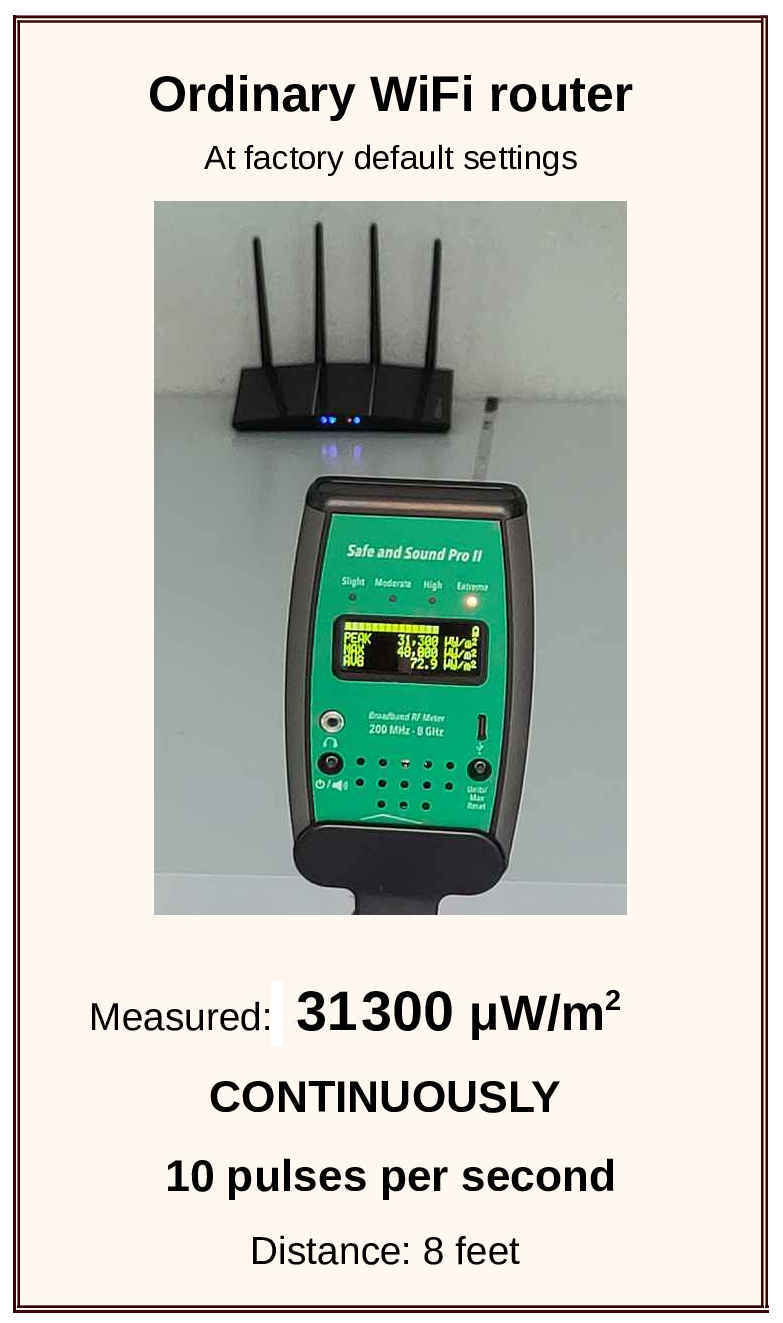 Figure 1. Measured EMFs from an ordinary WiFi router at the factory default settings are 31,300 µW/m², 10 pulses per second. Measured with a Safe and Sound Pro II RF meter at a distance of 8 feet (=2.5 meters). Click image to enlarge.
Range and measured EMFs versus the transmit power setting for the JRS Eco 100 Era router
The JRS Eco 100 Era router emits much less radiation than a standard router. Its default transmission level is already much lower than that of standard routers, and the user can adjust the transmission power very precisely (in 1 dB increments). This allows you to set exactly the range you need—and no more. It can be adjusted in 20 steps, from 1 milliwatt to 100 milliwatts. In addition, the number of pulses per second is reduced by 87% to approximately one pulse per second.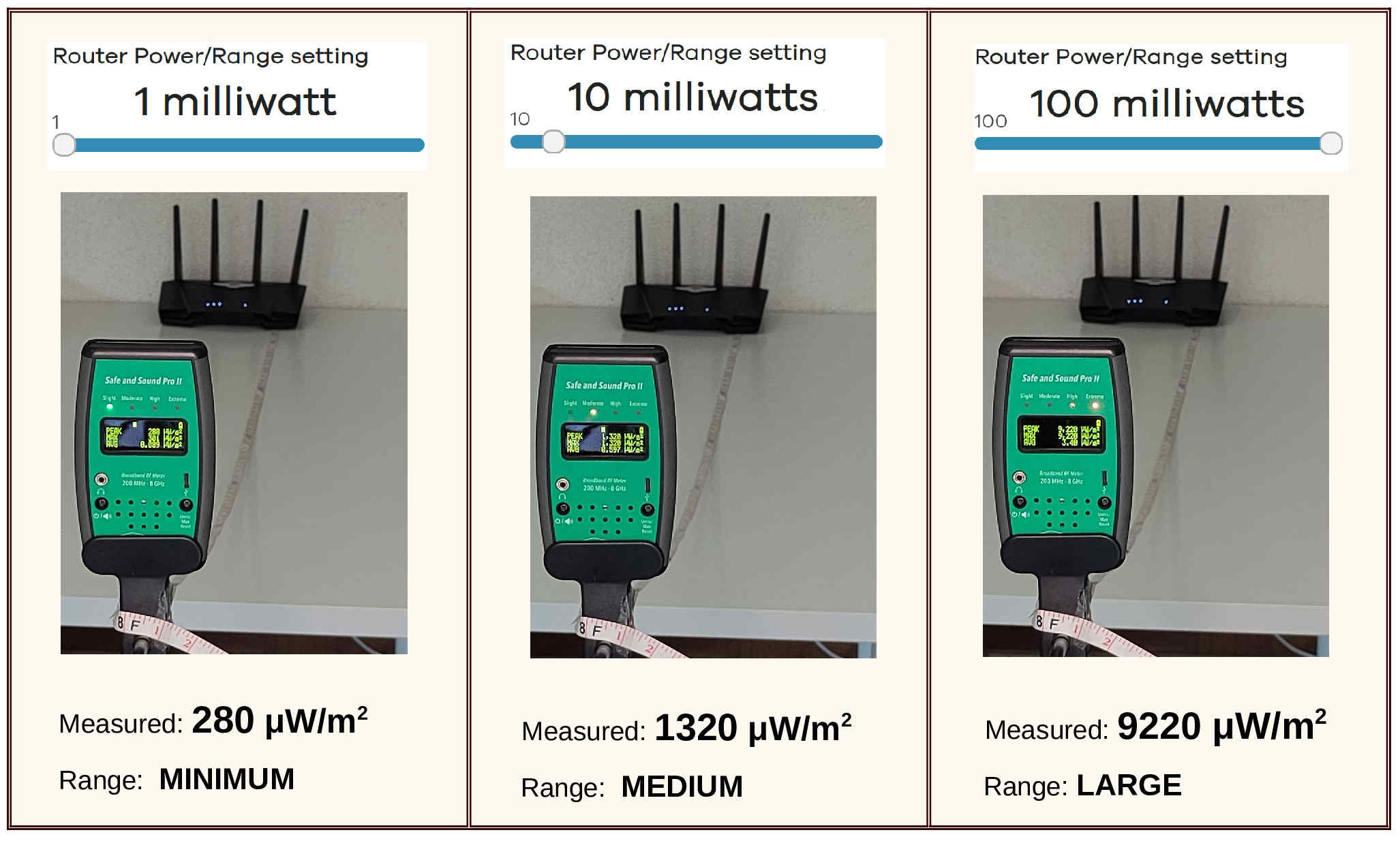 Figure 2. With the output power set to 1 milliwatt, the JRS Eco 100 Era router has the lowest EMF emissions on the market: 280 µW/m², measured with a Safe and Sound Pro II RF meter at a distance of 8 feet (=2.5 meters). Click image to enlarge.
It's important to understand that transmission power is inextricably linked to the router's range — it's a physical fact of life. We ship the JRS routers with an output power of 20 milliwatts by default (previously 63 milliwatts), which provides an adequate range for a medium-sized home. You can manually adjust the output power to suit your needs, giving you exactly the range you want. At a setting of 1 milliwatt, the JRS Eco 100 Era router has the lowest EMF levels of any WiFi router on the market. With the Safe and Sound meter, we measure it at only 280 microwatts per square meter (µW/m²) at a distance of 8 feet.
These values were measured with WiFi enabled on the JRS Eco 100 router. When no WiFi devices are connected, the JRS Eco 100 router is 100% radiation-free.
For the scenario with WiFi enabled, the table below shows the exact measured radiation levels. Since EMF meters from different brands yield different results, we have included measurements taken with both the Safe and Sound Pro II RF meter and the Cornet ED98 QPro 5G meter. The Safe and Sound meter is more sensitive to WiFi frequencies than the Cornet meter and therefore displays higher readings. To facilitate comparison, we held the Cornet meter at a shorter distance (0.6 m versus 2.5 m).
Figure 2. With the output power set to 1 milliwatt, the JRS Eco 100 Era router has the lowest EMF emissions on the market: 280 µW/m², measured with a Safe and Sound Pro II RF meter at a distance of 8 feet (=2.5 meters). Click image to enlarge.
It's important to understand that transmission power is inextricably linked to the router's range — it's a physical fact of life. We ship the JRS routers with an output power of 20 milliwatts by default (previously 63 milliwatts), which provides an adequate range for a medium-sized home. You can manually adjust the output power to suit your needs, giving you exactly the range you want. At a setting of 1 milliwatt, the JRS Eco 100 Era router has the lowest EMF levels of any WiFi router on the market. With the Safe and Sound meter, we measure it at only 280 microwatts per square meter (µW/m²) at a distance of 8 feet.
These values were measured with WiFi enabled on the JRS Eco 100 router. When no WiFi devices are connected, the JRS Eco 100 router is 100% radiation-free.
For the scenario with WiFi enabled, the table below shows the exact measured radiation levels. Since EMF meters from different brands yield different results, we have included measurements taken with both the Safe and Sound Pro II RF meter and the Cornet ED98 QPro 5G meter. The Safe and Sound meter is more sensitive to WiFi frequencies than the Cornet meter and therefore displays higher readings. To facilitate comparison, we held the Cornet meter at a shorter distance (0.6 m versus 2.5 m).
| JRS Eco 100 Era Power / Range setting * [milliwatt] for 2.4 GHz and 5 GHz (both active) | Range | Measured with WiFi active. (When the JRS router is in sleep mode, RF emission is zero.) | |||
|---|---|---|---|---|---|
| Measured with Safe and Sound Pro II RF meter at 8 feet distance | Measured with Cornet ED98 QPro 5G meter at 2 feet distance | Measured with Rohde & Schwarz FSH6 spectrum analyzer at 2 feet distance | |||
| Power density [µW/m2] (Lower is less EMF) | Channel power [dBm] (Higher is less EMF, logarithmic) | ||||
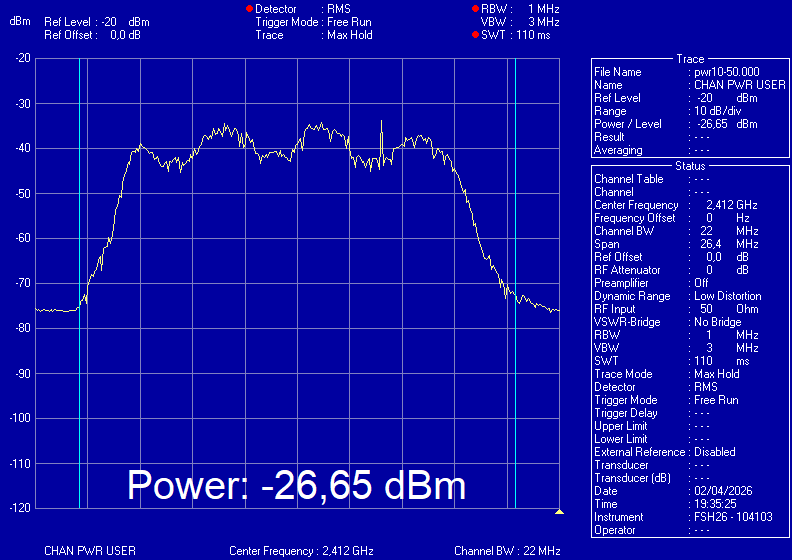
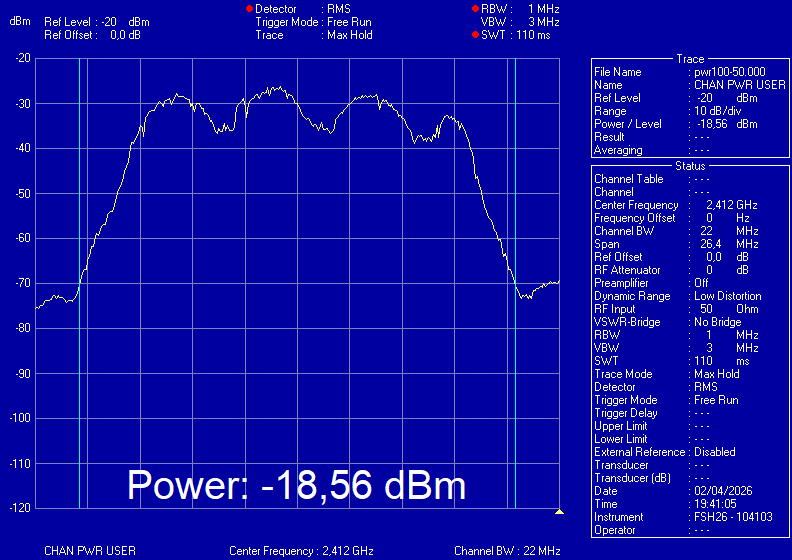
| 1 ← Lowest EMF on the market | Minimum | 280 | 290 | -34 | -33.4 |
| 10 | Medium | 1320 | 1076 | -26 | -26.7 |
| 100 | Large | 9220 | 7110 | -18 | -18.6 |
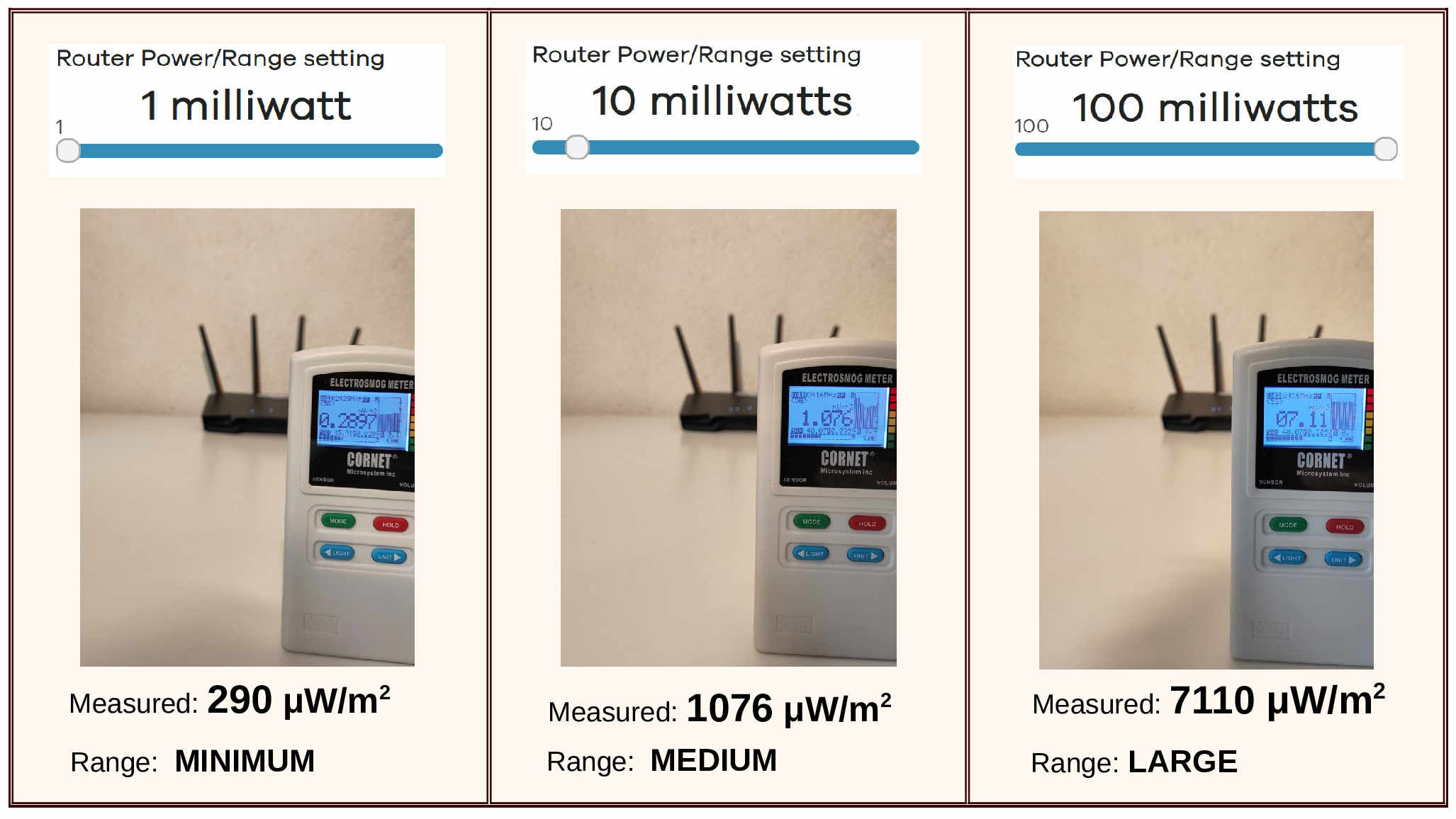 Figure 3. EMF emissions of the JRS Eco 100 Era router, measured with a Cornet ED98 QPro 5G meter at a distance of 2 feet (=0.6 meters). To facilitate comparison, the measurement was taken at a shorter distance, as the Cornet is less sensitive to WiFi frequencies.
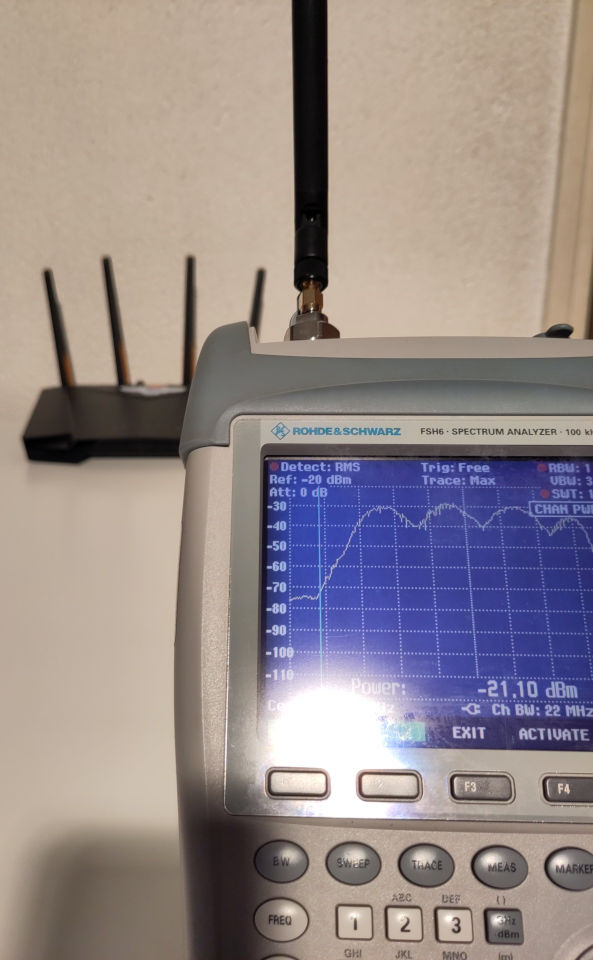 Figure 4. The measurements taken with the Rohde & Schwarz FSH6 spectrum analyzer confirm the factor between the measurements at different power and range settings. The spectrum analyzer is the most accurately calibrated measurement device. This picture shows a channel power measurement at a power setting of 63 milliwatts at 2 feet distance.
Further reading:
Does the Eco router reduce the peak power of the pulses?
Doesn't the Eco router cause my wireless devices to actually emit more radiation?
Figure 4. The measurements taken with the Rohde & Schwarz FSH6 spectrum analyzer confirm the factor between the measurements at different power and range settings. The spectrum analyzer is the most accurately calibrated measurement device. This picture shows a channel power measurement at a power setting of 63 milliwatts at 2 feet distance.
Further reading:
Does the Eco router reduce the peak power of the pulses?
Doesn't the Eco router cause my wireless devices to actually emit more radiation? The settings menu of the JRS Eco 100 Era router
The settings menu of the JRS Eco 100 Era router can be accessed by typing http://192.168.4.1 in the address bar of your browser. Log in with the username root and the 10-digit ‘Router pwd’ or ‘Admin key’ found on the label on the bottom of the router. If you cannot open the login screen at http://192.168.4.1, please note that it is only accessible from a computer that is directly connected to the Eco-router, either via a cable to one of the LAN ports or wirelessly via the Eco-router's wifi network. You may also need to check the cabling to the Eco-router: How to install your Eco router - video manual. Also, make sure that any VPN connections on your computer are disabled. All JRS Eco settings can be found under the heading ‘Eco 100 Wifi’. To change the administrator password for accessing the settings menu, go to System -> Administration -> Router Password tab. (The administrator password is a different setting from the wifi password.)How can I adjust the transmit power of the JRS Eco 100 Era?
The JRS Eco 100 Era comes with a default transmit power setting of 20 milliwatts (previously 63 milliwatts). This is lower than standard routers, and you can reduce it further if you wish, or increase it, depending on the size of your home and how much range you want.- Log in to the router's settings screen. (See How do I access the settings menu of the JRS Eco 100 Era router?)
- Click on Eco 100 WiFi.
- Click on Set Power/Range.
- You can use the sliders to adjust the transmit power. Try to find a setting that gives you enough signal in your home, but not too much.
How can I set times on the JRS Eco 100 Era when the wifi turns off, for example at night?
The JRS Eco 100 Era has a Wifi scheduler/timer, which allows you to schedule times when the wifi turns off, e.g. at night, and turns back on, e.g. in the morning. This allows you to ensure that the router turns off the wifi even if there are still wifi devices connected. The wired ports will continue to function as normal.- Log in to the router's settings screen.
- Go to the Eco 100 Wifi - Wifi Scheduler page and check the box next to ‘Enable wifi schedule’ under the heading ‘Global Settings’.
- You can set the rules under the heading ‘Schedule Rules’. You can create different rules for different days of the week. There are two default example rules: ‘Business Hours’ and ‘Weekend’. By checking ‘Enable’ for a rule, you activate it. You can also edit or delete a rule. To create a new rule, click on the ‘Add’ button at the bottom.
- In most cases, you will want to check ‘Force disabling wifi even if stations associated’: disable wifi even if there are still devices connected. Otherwise, the router will wait to disable it's wifi until there are no more devices connected.
- When you are finished, click 'Save & Apply' at the bottom to save everything.
- 'Activate wifi': This allows you to manually enable wifi, thereby overriding the Wifi scheduler. It has the same effect as pressing the WPS button on the back of the router.
- 'Disable wifi gracefully': This causes the router to wait until the last device logs off the wifi, and then it will turn off the wifi.
- ‘Disable wifi forced’: This causes the router to turn off the wifi immediately. It has the same effect as pressing the WPS button on the back of the router.
How do I change the wifi password, name, or other settings of a wifi network on the JRS Eco 100 Era?
Log in to the router's settings screen and go to the Eco-100 Wifi -> Wifi Networks page.Changing the name or wifi password of a wifi network
In the default configuration of the JRS Eco 100 Era router, there are 4 networks:- 2.4 GHz band (longest range):
- 1. jrs (hidden network)
- 2. JRS-Eco-100 (visible network)
- 5 GHz band (highest speed):
- 3. jrs (hidden network)
- 4. JRS-Eco-100-5 (visible network)
- SSID: The name of the Wi-Fi network.
- Wifi key: The wifi password for this network. You can use the button with the asterisk to make the password visible.
Adding wifi networks
You can add a guest network, for example, using the ‘Add’ button for the desired wifi band (2.4 or 5 GHz).Deactivating an entire wifi band (2.4 or 5 GHz)
It is possible to permanently deactivate an entire wifi band (2.4 or 5 GHz) if you wish, e.g. to reduce radiation even further. All wifi networks on this band will then no longer be available. To do this, press the red ‘Disable’ button for one of the wifi bands 2.4 or 5 GHz. This wifi band will now always remain off (deactivated). Please note: If you press Disable for 2.4 GHz, the Full Eco function will not work and the 5 GHz wifi, if active, will not go into Full Eco sleep mode when no wifi devices are connected. If you want to disable one wifi band, we therefore recommend choosing 5 GHz. This makes it possible to permanently deactivate the 5 GHz band to reduce radiation, while still being able to switch the 2.4 GHz band on and off by pressing the WPS button. Pressing the WPS button will only switch the non-deactivated wifi bands on and off. If you later decide to re-enable the wifi band, you can use the "Enable" button.Advanced
- Removing wifi networks: In general, we recommend leaving the wifi networks as they are. If you still want to remove the visible networks, e.g. because you don't need them, you can do so using the ‘Remove’ button. The additional wifi networks do not result in more radiation, because the beacon signals from all wifi networks are transmitted in a single pulse.
- Automatic selection of 2.4 or 5 GHz by your devices: Your device (e.g., phone) automatically selects the best connection for the ‘jrs’ network: 2.4 or 5 GHz. If you do not want this and want to be able to explicitly choose the wifi band on your phone, you can rename the 5 GHz ‘jrs’ to, for example, ‘jrs5’.
- Advanced wifi network settings: With the ‘Advanced settings’ button next to a wifi network, you can change advanced settings for this network, such as the security type. Regarding WPA2/WPA3 security: The router is set to WPA2 security by default, since many older devices that only support WPA2 are still in circulation. However, if you do not use such devices, you can safely switch the security for all wifi networks to WPA3. Although a WPA2/WPA3 mixed mode is available, the WiFi Alliance no longer recommends its use for wifi routers as it is not always stable with all devices.
How can I turn the wifi on and off for the JRS Eco 100 Era Router?
There are several ways to turn the JRS Eco 100 Era router's wifi off and back on.Using the WPS button on the router
On the JRS Eco 100 Era, the small WPS button on the back acts as a wifi on/off button. Press the button for 1 second to turn off the wifi. When successful, the wifi lights on the router will turn off. Press again to turn the wifi back on. Even if the wifi has been turned off by the wifi scheduler, you can use the WPS button to turn the wifi back on.Wifi Scheduler page in the settings menu
From the router's settings menu, go to Eco 100 Wifi -> Wifi Scheduler and use the ‘Activate Wifi’ button (to turn it on) or the ‘Disable Wifi forced’ button (to turn it off). This has exactly the same effect as the WPS button. To set up a time schedule for the Wifi Scheduler, see How can you set times on the JRS Eco 100 Era when the wifi turns off, for example at night?Permanently deactivate a wifi band
It is possible to permanently deactivate an entire wifi band (2.4 or 5) if you wish, e.g. to reduce radiation even further. You can do this on the Eco 100 Wifi -> Wifi Networks page. See How do I change the wifi password, name, or other settings of a wifi network on the JRS Eco 100 Era? Switching the wifi on and off with the WPS button will then no longer work for the deactivated wifi band.Automatic Full Eco mode
If you turn off wifi on all your wifi devices (phones, etc.) so that the devices are no longer connected to wifi, the Eco 100 router will automatically go into 100% radiation-free Full Eco sleep mode. Once you turn wifi back on on one of your devices, the router's wifi will automatically turn back on.How can I reset the JRS Eco 100 Era router to its default settings?
To reset the JRS Eco 100 Era router to its default settings, first wait until it has fully booted up and the lights are steady. You can then reset the router in one of the following ways. In both cases, the router will restart and be ready with the default settings after a few minutes.Option 1 - Using the ‘Reset’ button
Use a paperclip to press and hold the recessed ‘Reset’ button for about 10 seconds, until the power light starts flashing rapidly.Option 2 - Using the settings menu
Log in to the router settings menu and go to the System -> Backup / Flash Firmware page. Then click on the ‘Perform Reset’ button.How can I set the JRS Eco 100 Era router to Access Point mode?
The Eco router is set to Router mode by default. In this mode, the WAN and LAN sides of the router are in different subnetworks. This means that routing between the WAN and LAN takes place. For example, it is not possible to access a network drive connected to the Internet modem/router on the WAN side from the LAN side. In access point mode, however, the router acts as a simple network switch, and all devices connected to it (via WAN, LAN ports, and wifi) are on the same LAN network, creating a single network. This gives you access to the network drive connected to your internet modem/router. Access Point mode is also useful if you have multiple Eco 100 routers and want to be able to seamlessly roam (switch) with your wireless devices when moving from one router to another. Keep in mind that you must then make the wifi network names (SSIDs) and wifi passwords of all secondary Eco routers the same as those of the primary router. Please note: you cannot use Access Point mode for the first Eco router if your internet modem is in bridge mode or does not have routing functionality. This is always the case if your modem only has one LAN port.To set the Eco router to Access Point mode
- Log in to the router settings menu
- Go to the System -> Custom Commands page
- Click the 'Run' button under 'Switch to AP mode'
- The router will restart.
To revert to the default Router mode setting
- Log in to the router settings menu
- Go to the System -> Custom Commands page
- Click the 'Run' button under 'Revert to Router Mode'
- The router will restart.
How do I set up a PPPoE connection on the JRS Eco 100 Era (and optionally a VLAN)?
If you have received a PPPoE username and password from your internet service provider, you can enter them into the Eco 100 Era router as follows to ensure your internet connection works:- Log in to the router's settings menu
- Go to Network -> Interfaces
- Click on the ‘Edit’ button next to WAN
- Select PPPoE in the ‘Protocol’ field and click on the ‘Switch protocol’ button
- Fill in the ‘PAP/CHAP username’ and ‘PAP/CHAP password’ fields with the details you received from your provider
- Click on ‘Save’
- Click on ‘Save & Apply’ at the bottom of the page.
- Go to Network -> Interfaces
- Click the 'Edit' button next to WAN
- Click on 'Device', scroll down to 'custom' and enter 'eth1.[VLAN number]' where [VLAN number] is the number you received from your provider.
- Click on ‘Save’
- Click on ‘Save & Apply’ at the bottom of the page.
Troubleshooting: The wifi connection is disrupted, my devices cannot find the JRS Eco network, or the connection is slow [Eco 100 Era]
Is the wifi connection interfering, are devices unable to find the wifi network of the JRS Eco 100 Era router, is the connection faltering or is it very slow? This may be due to interference from other wifi networks. These could be your neighbors' wifi routers, a printer broadcasting a Wifi-Direct network, or even other wireless systems that share the 2.4 GHz wifi frequency (including Bluetooth). Also, if the built-in wifi of your internet modem (e.g., Comcast, Verizon, etc.) is not turned off, this can severely disrupt the signal of the Eco router. After all, in most cases, the Eco router is located right next to the internet modem. If this is the case, see: How do I turn off the wifi on my provider's internet router/modem? The best solution to these problems is to switch off the sources of interference. If that doesn't work, you can set the Eco router to a different channel. The procedure below will help you identify the sources of wifi interference and set the router to a free channel.- Go to the settings menu of the JRS Eco 100 Era router.
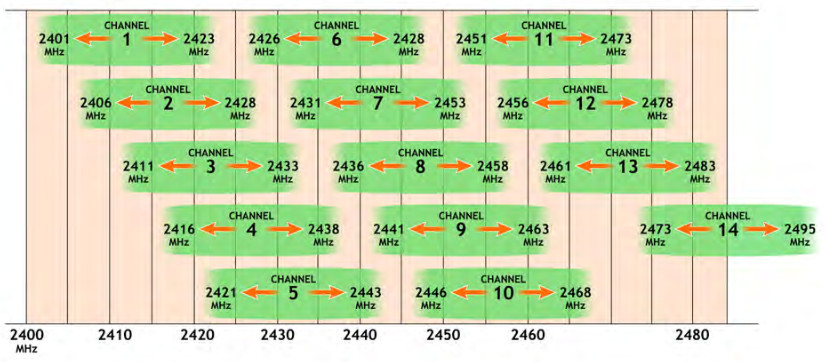
- Go to the Status -> Channel Analysis page. Once the scan is complete, all occupied wifi channels will be displayed. Here, you can see the names of interfering wifi networks and you can verify that the wifi on your internet modem is turned off. Note that the entry ‘Local Interface’ refers to the Eco router itself. (If the scan displays “No data” for 2.4 GHz and yields no results, go to the Eco 100 Wifi - Set Power/Range page, adjust the transmission power for 2.4 GHz slightly, click Save & Apply, and then return to the Status -> Channel Analysis page and run the scan again.) Look for a free channel with the least interference. In step 5, you can set the Eco 100 router to this channel. Please note: wifi channels partially overlap each other, and only channel sets with a minimum distance of 5 (e.g. 1, 6, and 11) do not overlap at all. See the image below.
- If there are no channels available that are completely free, check the signal strengths of neighboring wifi networks and choose a channel on which only a weak network is present. Because the wifi channels overlap to some extent, it is best to choose a channel that does not have any very strong interferers right next to it.
- In addition to scanning the 2.4 GHz band, it is also possible to perform a scan for the 5 GHz band by clicking on the ‘radio1 (5GHz)’ tab. However, there is usually little to be found there because the 5 GHz frequency is more strongly attenuated by walls.
- Now we will set up the selected free channel. Go to the Eco 100 Wifi -> Wifi Networks page and press the Edit button next to ‘2.4GHz Radio (longest range)’. Under ‘Channel’ next to ‘Operating Frequency’, you can set the selected channel. When you are done, click the ‘Save & Apply’ button at the bottom of the page.
- It is recommended to keep ‘Width’ (the channel bandwidth) at 20 MHz for 2.4GHz, otherwise there is a high chance of overlap with neighboring wifi networks, if there are.
- To increase the range of the Eco 100 router, you can also increase the transmission power.
Troubleshooting: The router does not enter Full Eco standby mode. [Eco 100 Era]
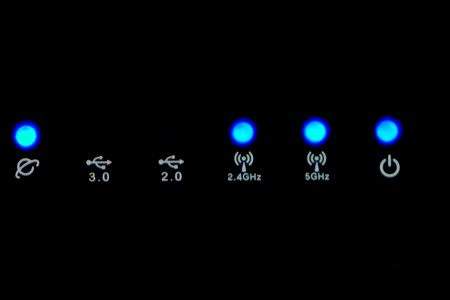
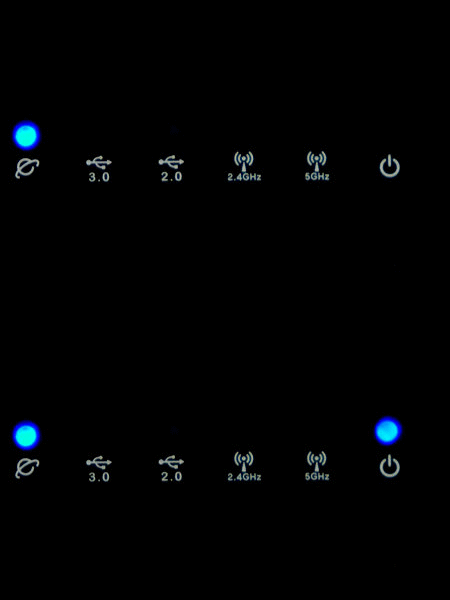
When the router is in Full Eco standby mode, the 2.4 and 5 GHz wifi lights are off, and the power light turns off for 1 second every 4 seconds, as shown in the animation below.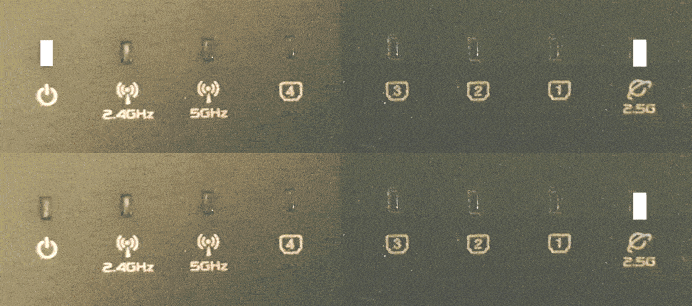 If this does not happen, the router is not in Full Eco standby mode. There are a number of possible causes for this:
There are devices connected to the wifi
In the router's settings menu, on the Eco 100 Wifi -> Registered Devices page, you can see which devices are keeping the router's wifi active. These are the devices with ‘Connected now’ next to them. To put the router into standby/sleep mode, you need to turn off the wifi on these devices. Even if your wireless devices are not connected but their Wi-Fi is still on, they can still send connection requests that keep the router awake.Location Services
You may need to disable the ‘improve location accuracy’ setting on your wireless device or disable location services altogether. If the setting is enabled, your device will continue to broadcast wifi scans even when wifi is turned off!The router is still in Learning Mode
After you have installed the Eco 100 Era router, it first enters Learning Mode. The lights on the router then flash as shown in the animation below.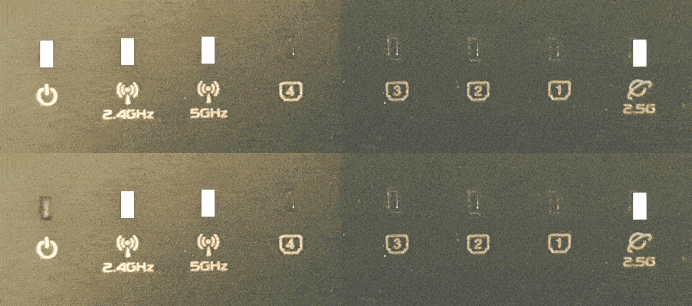 To recognize which devices belong to you, the router keeps a list of devices that you have previously connected to the router: the registration list. Then, if no new wifi devices are added to the registration list within 24 hours, the router automatically switches permanently to Full Eco mode, in which it is completely radiation-free when no devices are connected to the wifi. If you wish, you can skip the learning mode via the settings menu on the Eco 100 Wifi -> Pro Settings page.
 Troubleshooting: The JRS Eco 100 Era router does not wake up from Full Eco sleep mode when I turn on wifi on my device [Eco 100 Era]
When the Eco 100 Era router is in “no signal” mode, the lights will look as shown in the animation below.To activate the Eco router from this standby mode, modern wifi devices such as phones must be connected to the hidden network “jrs”. You only need to set this up once on your device; your device will then save the data and activate the router automatically the next time.
You will notice that this is necessary if the wifi network “jrs” is not listed among the available wifi networks on your wifi device when the Eco 100 router is in Full Eco sleep mode. By connecting to the hidden network “jrs”, you ensure that the Eco 100 router can recognize the connection request from your wifi device. Always connect to this hidden network “jrs”. If you have previously connected to one of the visible networks “JRS-Eco-100(-5)” on your device, we recommend deleting it using the ‘Forget’ option.
Instructions for connecting your devices to the “jrs” network can be found in Chapter 4 of the manual: JRS Eco 100 Era - English User Manual. Troubleshooting: I can connect to the wifi network, but I can’t access the Internet [Eco 100 Era]
Does your phone or other device display the message ‘no internet connection’ even though it is connected to the wifi of the JRS Eco 100 Era router? In that case, the WAN light with the globe icon on the router will likely not be lit. Check the following points to resolve this issue.Check the Ethernet cable
First, ensure that the connection between the Eco router and the Internet modem is correct. The Ethernet cable should go from the WAN port on the Eco router to a port labelled 'LAN' on your Internet modem. If your Internet modem has multiple LAN ports, use port 1. See How to install your Eco router: video manualTurn off your Internet modem for five minutes
Your Internet modem/router may be in Bridge Mode. This is always the case if your modem only has one LAN port. In this case, your Internet service provider (ISP) only allows one unique device (with a unique MAC address) to be connected directly to it. If this is the first time you have connected the Eco router, you may need to reset the connection to the provider network. To do this, remove all Ethernet cables from your modem and turn it off for five full minutes. Then, wait until the modem has finished starting up before connecting the Eco router to LAN port 1. You can also contact your Internet provider's customer service for assistance.Configure the correct settings for the WAN connection
If you are still unable to connect to the Internet, ask your Internet provider for the necessary settings. In this case, you will usually need a PPPoE username and password. Then configure these settings on the router: How do I set up a PPPoE connection on the JRS Eco 100 Era?User Manual for the JRS Eco 100 Era router
JRS Eco 100 Era - English User ManualEco 100 D1/D2 and previous Eco router generations: Technical questions
The router does not wake up from Full Eco standby mode when I turn on wifi on my wireless device [Eco 100]
When the router is no-signal mode, the lights look as shown in the image on the right. To be able to wake up the Eco router from standby, modern devices need to be connected to the hidden network 'jrs'. You need to set this up only once in your device. Once you've done this, your device will remember the credentials and automatically wake up the router next time.
If the JRS wifi network doesn't appear in the list of available wifi networks on your wireless device when the Eco 100 router is in Full Eco standby, this is when you need to enter the hidden 'jrs' network information into your device. Connecting to the hidden 'jrs' network assures that the Eco router can recognize the connection request signal from your wireless device and come out of Full Eco standby mode. Always connect to this hidden 'jrs' network and 'forget' the visible 'JRSeco100' networks on your devices, in case you already connected to those before.
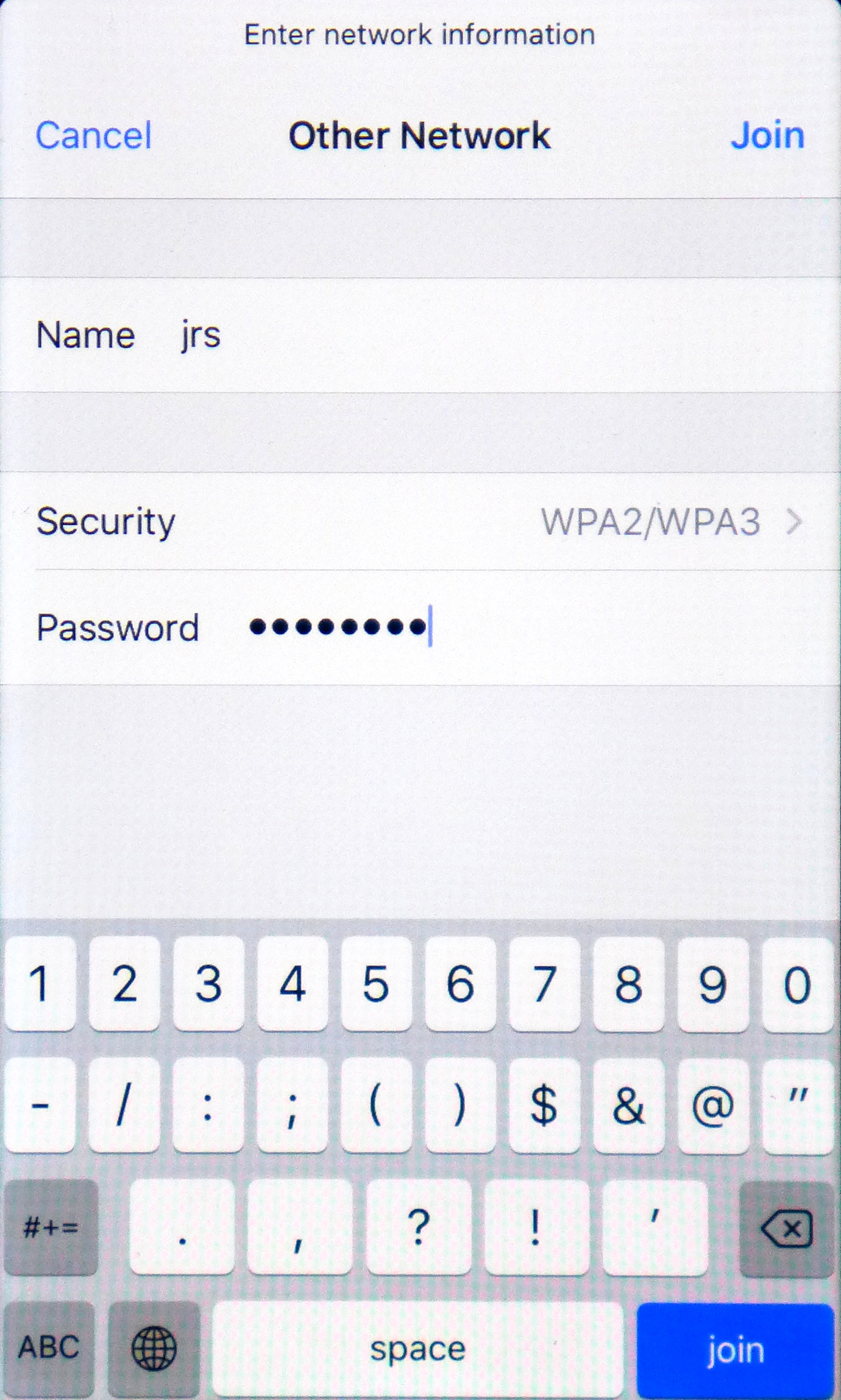
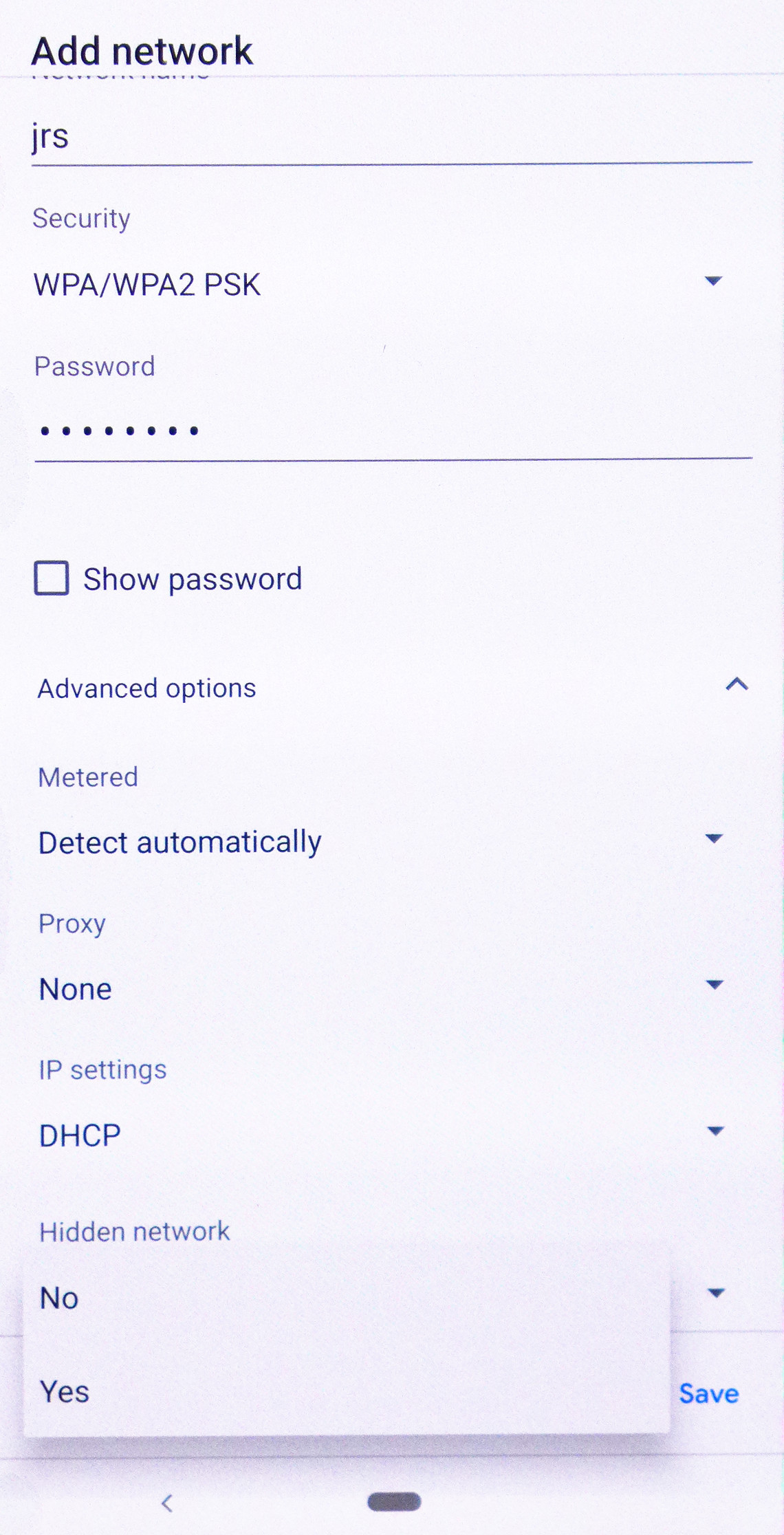 The screen shots show how to connect from an Android phone (left) and from an iPhone (right). To make this ‘Add network’ screen appear on an Android phone, you either need to click on the menu icon and then press "Add network" or you need to click on the ‘+’-sign at the right top in the list of available wireless networks. On an iPhone or iPad, you need to click on ‘Other network’ at the bottom of the list of available wifi networks. Enter ‘jrs’ for the network name. Select WPA2 at ‘security’ and enter the wifi password which is the 8-digit PIN code listed on the label on the router. Set Hidden network to Yes if this advanced option is available. For a Macbook, see here.
On Windows 10, connecting to the hidden 'jrs' network is only needed when you have set Windows to use random hardware addresses. Open the Settings and then go to Network & Internet. Select Wi-Fi and click "Manage known networks".
The screen shots show how to connect from an Android phone (left) and from an iPhone (right). To make this ‘Add network’ screen appear on an Android phone, you either need to click on the menu icon and then press "Add network" or you need to click on the ‘+’-sign at the right top in the list of available wireless networks. On an iPhone or iPad, you need to click on ‘Other network’ at the bottom of the list of available wifi networks. Enter ‘jrs’ for the network name. Select WPA2 at ‘security’ and enter the wifi password which is the 8-digit PIN code listed on the label on the router. Set Hidden network to Yes if this advanced option is available. For a Macbook, see here.
On Windows 10, connecting to the hidden 'jrs' network is only needed when you have set Windows to use random hardware addresses. Open the Settings and then go to Network & Internet. Select Wi-Fi and click "Manage known networks". 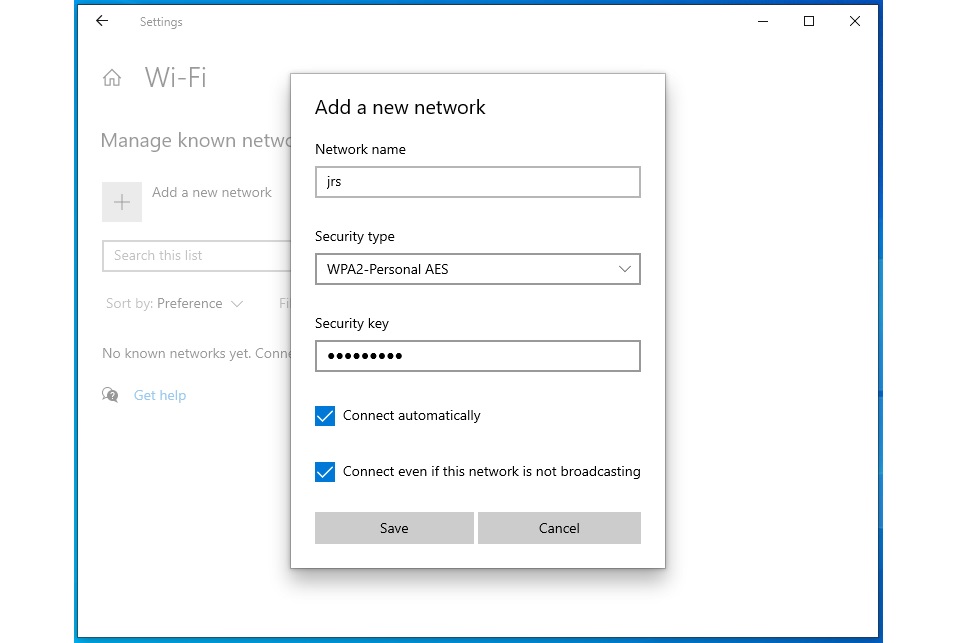 Then click the "+ Add a network" button. Enter ‘jrs’ for the network name. Select WPA2 at ‘security’ and enter the wifi password that you set for the visible network. Check the box that says "Connect automatically". Also check the box that says "Connect even if the network is not broadcasting."
You can click on the screen shots to enlarge them.
For more details, see the manual, page 6.
Then click the "+ Add a network" button. Enter ‘jrs’ for the network name. Select WPA2 at ‘security’ and enter the wifi password that you set for the visible network. Check the box that says "Connect automatically". Also check the box that says "Connect even if the network is not broadcasting."
You can click on the screen shots to enlarge them.
For more details, see the manual, page 6. The router does not go into Full Eco standby mode. What can I do? [Eco 100]
When the router is in Full Eco standby mode, the 2.4 and 5 GHz wifi lights should be off and every 4 seconds the power light should go out for 1 second. If this doesn’t happen, the router is not in Full Eco standby mode. There are a number of possible causes.| Router LEDs | |
|---|---|
|
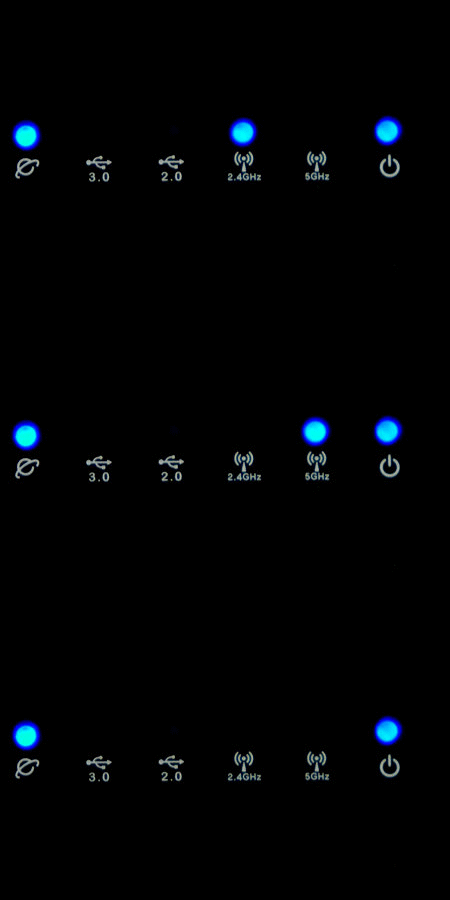 |
| Standby in Full Eco mode 100% radiation free | Learning mode a.k.a. Beacon Eco mode standby First day after installation 99% radiation free |
- After you have just installed the Eco 100 router, its wifi will be active and waiting for the first wireless device to connect. To recognize which devices are yours, the router automatically keeps a list of devices you have previously connected to it: the registration list. Once you connect the first wireless device to the router, that device will automatically be registered in the list, and the router will go into Beacon Eco mode (aka learning mode). After a day, the router will automatically switch to Full Eco mode, in which the it is completely radiation-free in standby. For more information, see chapter 6 of the manual.
- Please check whether the router is in 'Full Eco' mode in the drop-down menu on the JRS tab of the Wireless page in the Asus settings menu.
- The Full Eco functionality does not work if Enable Radio if set to Off for the 2.4 GHz wifi.
- Please check in the registration list, which is shown at the bottom of the tab JRS on the Wireless page of the router settings menu. If there are devices showing 'Connected Now', these are the devices keeping the router awake and you need to turn wifi off on those devices. There are two registration lists: one for the 2.4GHz network and one for the 5 GHz network. You need to check them both. You can switch between lists by changing the Band selector. Even if your wireless devices are not connected but their wifi is still on, they may still be transmitting connection requests which will keep the router awake. You can push the Clear List button to have the router automatically build up the list from scratch, so you can check step-by-step which device keeps the router awake.
- You may need to turn off the ‘improve location accuracy’ setting on your wireless device or turn off Location services altogether. If the setting is on, your device will keep emitting wifi scans even if wifi is turned off!
- If all of the above doesn’t help, try whether restarting the router solves the problem.
JRS Eco WiFi Tips & Tricks
A video with tips and tricks to reduce radiation from the router even more, by turning off 5 GHz, using the time scheduler and reducing the transmit power.
JRS Eco WiFi Tips & Tricks
I can connect to the wifi network but can’t get on the Internet [Eco 100]
Connect your device to the Asus router either wirelessly or via an Ethernet cable plugged into one of the four LAN ports. Enter router.asus.com in the address bar of your browser, log in to the Asus settings menu and hover over the network icon in the right top. The screen should show ‘WAN-connected’. If it doesn’t, please follow the procedure below. Solution 1: First, please check whether the connection between the Eco router and the Internet modem is properly made. The Ethernet cable should run from the blue WAN port of the Eco router to a port labeled 'LAN' on your Internet modem, preferably port no. 1. See the installation video. Solution 2: Your Internet modem may be configured in so-called Bridge Mode. A router or other device you connect to its LAN port is then directly connected to the provider's network. Usually only one unique device (MAC address) is allowed to be connected to the provider's network. When this place has been taken by the previous setup, the network needs to be reset. Unplug all Ethernet cables from your modem and turn off your Internet modem for a full five minutes. Then turn it back on, wait until it has finished starting up and then reconnect the Eco router to LAN port 1 of the Internet modem. You may also contact your Internet provider's customer service for assistance. Solution 3: Go to WAN settings in the router settings menu via router.asus.com. Set WAN Connection Type to Automatic IP and click on Apply. Then go to LAN settings. Set the LAN address to 192.168.4.1. Click on Apply.My devices cannot find the JRS Eco network, connection keeps dropping or is slow [Eco 100]
When other wifi networks are in the area, for example neighboring wireless routers or other wireless transmitters working on the same wifi frequency as the Eco router, interference may occur which causes these problems. If the built-in wifi of your Internet modem is not turned off, and that includes the public wifi network or wifispots it may be transmitting, these can interfere heavily with the JRS Eco signal. If this is the case, see: How do I turn off the Wi-Fi of my provider’s Internet gateway box/router? In most cases the solution for connection problems is to set the Eco router to another channel. It is best to set the router to a fixed channel instead of to Auto. To find the best channel you may follow this procedure:- Go to the router settings menu by entering router.asus.com in the address bar of your browser. Login with the administrator credentials you created when setting up the router. Go to the Wireless page (under Advanced Settings) and click on the Site Survey tab. When scanning is finished, a table is shown. Copy/paste or note down the results, especially the Control Channel and Band columns. They show all occupied wifi channels. These are the channels you should not set the Eco router to. From this list of wifi network names you could also see if the wifi of your internet modem has not yet been switched off.
- Go to the Wireless → General tab and set the Band selector to 2.4 GHz. Then set Control Channel to a free channel, one that was not occupied in the Site Survey list. Try to keep one channel of spacing between the Eco router setting and any interferer channels, because the wifi channels partly overlap. Only channels 1, 6 and 11 are non-overlapping. Click on Apply at the bottom of the page. Next, you can do the same for 5GHz.
- If there are no free channels, look at the signal strength of the other wifi networks. Choose a channel on which only a weak network is present. Also try to avoid having very strong interferers right above or below the selected channel.
- Optionally: Set Channel Bandwidth to 20 MHz for 2.4GHz and to 40 MHz for 5GHz.
- Optionally: lower the 'beacon interval' to 800 for 2.4 GHz in the JRS tab of the Wireless page. For the 5GHz channel you may need to reduce it even further.
Is the JRS Eco router compatible with my SONOS music system?
Certain SONOS music systems are known to cause interference to the Eco router's signal. This applies only if you use the SONOS music system over a wifi connection. Also, please keep in mind that streaming music over wifi generates a high level of continuous wifi radiation in your home. If possible, hardwire your music system to eliminate radiation and interference.[Legacy Eco-wifi routers] Devices cannot find the JRS Eco network, connection drops or slow connection
When other wifi networks are in the area, for example neighbouring wireless routers or other wireless transmitters working on the same wifi frequency as the Eco router, interference may occur which causes these problems. Also if the built-in wifi of your Internet modem is not turned off, and that includes the public wifi network or wifispots it may be transmitting, these can interfere heavily with the Eco router's signal. In most cases the solution for connection problems is to set the Eco router to another channel. It is best to set the router to a fixed channel instead of to Auto. To find the best channel you may follow this procedure: * Go to the menu Basic --> Network in the Eco router's settings menu, accessible by typing 192.168.4.1 in the address bar of your browser (username root, password ecowifi!), and click on the scan button next to the Channel selection for 2.4GHz. When scanning is finished, choose a free channel (a channel next to which no neighboring wifi network name is shown). For 5GHz this is usually not needed. Click on save at the bottom of the page. * If there are no free channels, look at the signal strength of the other wifi networks. The signal strength ranges from approx. -80dBm (very weak) to -30dBm (very strong). Choose a channel on which only a weak network is present. Also try to avoid having very strong interferers right above or below the selected channel. Optionally: go to the menu Advanced --> Wireless, to the setting Interference Mitigation and set this to Non-WLAN. Do the above both for 2,4GHz and for 5GHz. This function attempts to avoid interference from other equipment that is transmitting on the same frequency (such as certain wireless video links). Optionally: lower the 'beacon interval' to 800 in the menu Advanced –-> Wireless. Do this both for the 2.4GHz channel and the 5GHz channel (is shown twice). Optionally: In the menu Advanced –> Wireless, change the WMM (wireless multimedia) setting to 'disabled' and click on save at the bottom of the page. Find more troubleshooting tips here: Troubleshooting-wifi-connection-problems[Legacy Eco-wifi routers] How can I maximize the throughput speed on the 04AC and 05AC models?
You can maximize the throughput speed on the 04AC and 05AC models as follows: First log into the settings menu via http://192.168.4.1 (default username root and password ecowifi!).- Adjust the channel bandwidth to 80 MHz in the Basic -> Network settings menu.
- Configure the router as a switch, as explained in the Manual JRS Eco-wifi 05AC - English on page 8, to mitigate NAT bandwidth limiting.